
A step-by-step tutorial for anyone whose therapy is paid for by someone else — a company benefit (EAP) or a health insurance plan (HMO).
In one line: therapy on Mytherapist.ng can be billed to your employer or your HMO at ₦0 to you. Employer benefits apply automatically when you’re enrolled; HMO billing is a payment option you pick at checkout — choose your scheme, enter your enrollee ID, and we confirm your cover with them before the session.
Which path are you on?
| Your cover | How it works | Where to read |
|---|---|---|
| Employer / company benefit (EAP) — your workplace added you as a beneficiary | Applies automatically at checkout; nothing to select | Part A below |
| HMO (health insurance) — you hold a plan with a scheme like AllyHMO | You choose “My HMO” at checkout and enter your enrollee ID; we confirm your cover before the session | Part B below |
Part A — Book through your employer benefit (EAP)
Before you start: the mental model
There are a few moving parts. Understanding them saves a lot of confusion later.
- Your organisation buys a _plan_. A plan defines what you get — for example “2 therapy sessions per employee, every month” (a session plan) or “₦X of therapy spend per employee, every month” (a spend plan). It also defines which therapy types are covered (individual, couples, group) and which therapists are in-network (by “tier”).
- You are a _beneficiary_ of that plan. Your organisation adds you using a specific email address.
- You use the Mytherapist.ng app — the same one anyone uses. Your sponsorship simply makes eligible sessions free at checkout.
- The benefit attaches by email. You must sign up / log in with the exact email your organisation registered for you. A different personal email = no benefit.
- Limits reset on a cycle (monthly or annually). When you’ve used your allowance, you can still book — you just pay for the extra yourself.
Step 1 — Make sure your organisation has added you
You can’t self-enrol. Your company’s HR or benefits admin must add you as a beneficiary and mark you active.
✅ Checklist before you continue:
- You’ve been told you’re covered.
- You know which email was used to enrol you (ask HR if unsure).
- Your status is active (a pending or inactive beneficiary gets no benefit).
💡 If you were sent an invite, accept it first. An unaccepted invite means the sponsorship isn’t linked yet.
Step 2 — Sign in to the Mytherapist.ng app with the right email
Open the Mytherapist.ng app and log in (or sign up) using the email your organisation enrolled.
This is the single most common reason benefits “don’t show up”: you signed up earlier with a personal Gmail, but HR enrolled your work email. If your home screen shows no benefits, this is the first thing to check.
Step 3 — Confirm your benefits on the Home screen
Once you’re in, the Home screen shows a “You have benefits — Covered sessions from {your organisation}” card (just under the mood check-in) whenever an active sponsorship is detected.
Suggested read: HMO-Covered Therapy in Nigeria: How to Use Your Health Plan to Pay for Sessions
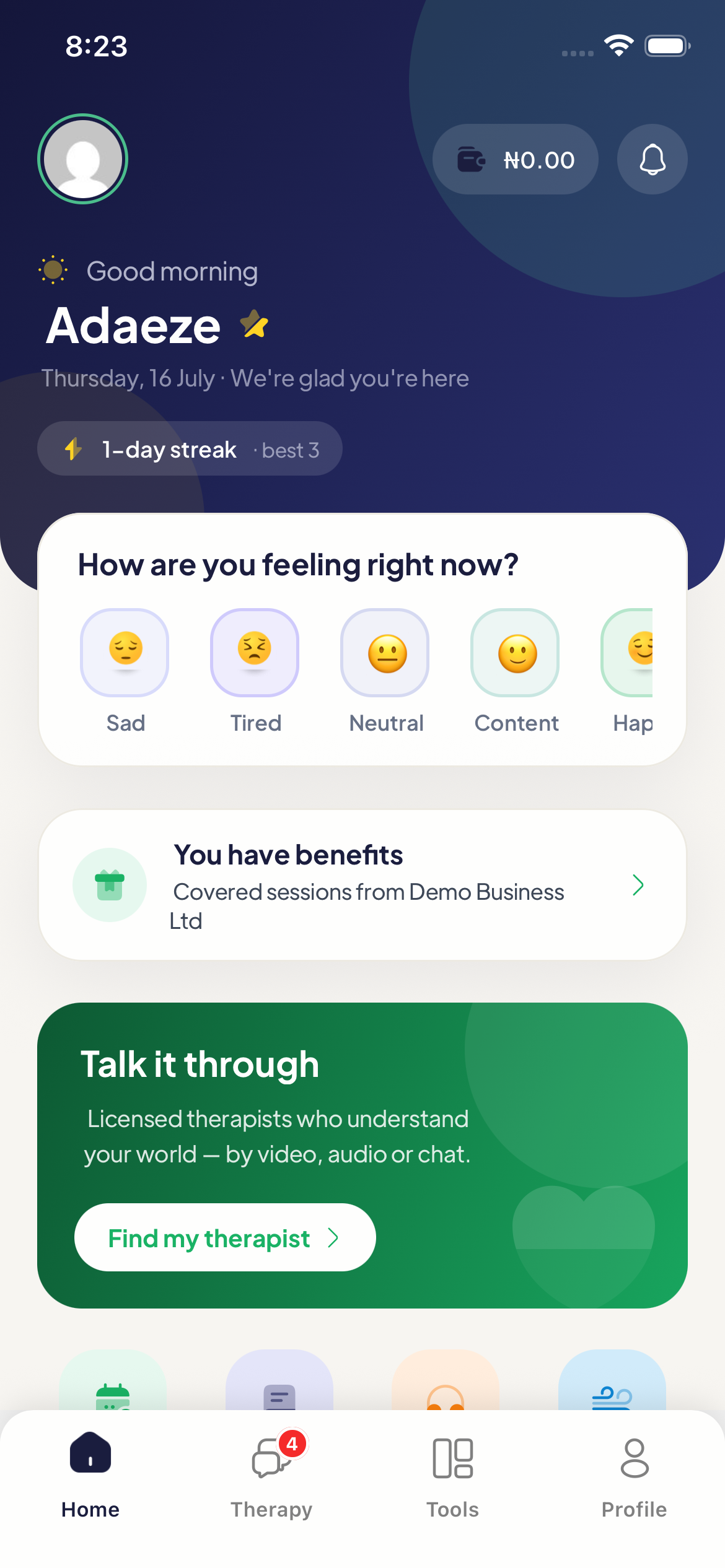
Tap the benefits card to open your Benefits / Provider screen. Here you’ll see:
- Your current provider (e.g. Demo Business Ltd).
- A short description of your coverage (e.g. “Core therapy access for employees and dependants.”).
- If you belong to more than one organisation, a “Switch Provider” option (top-right) to choose which one to book against.
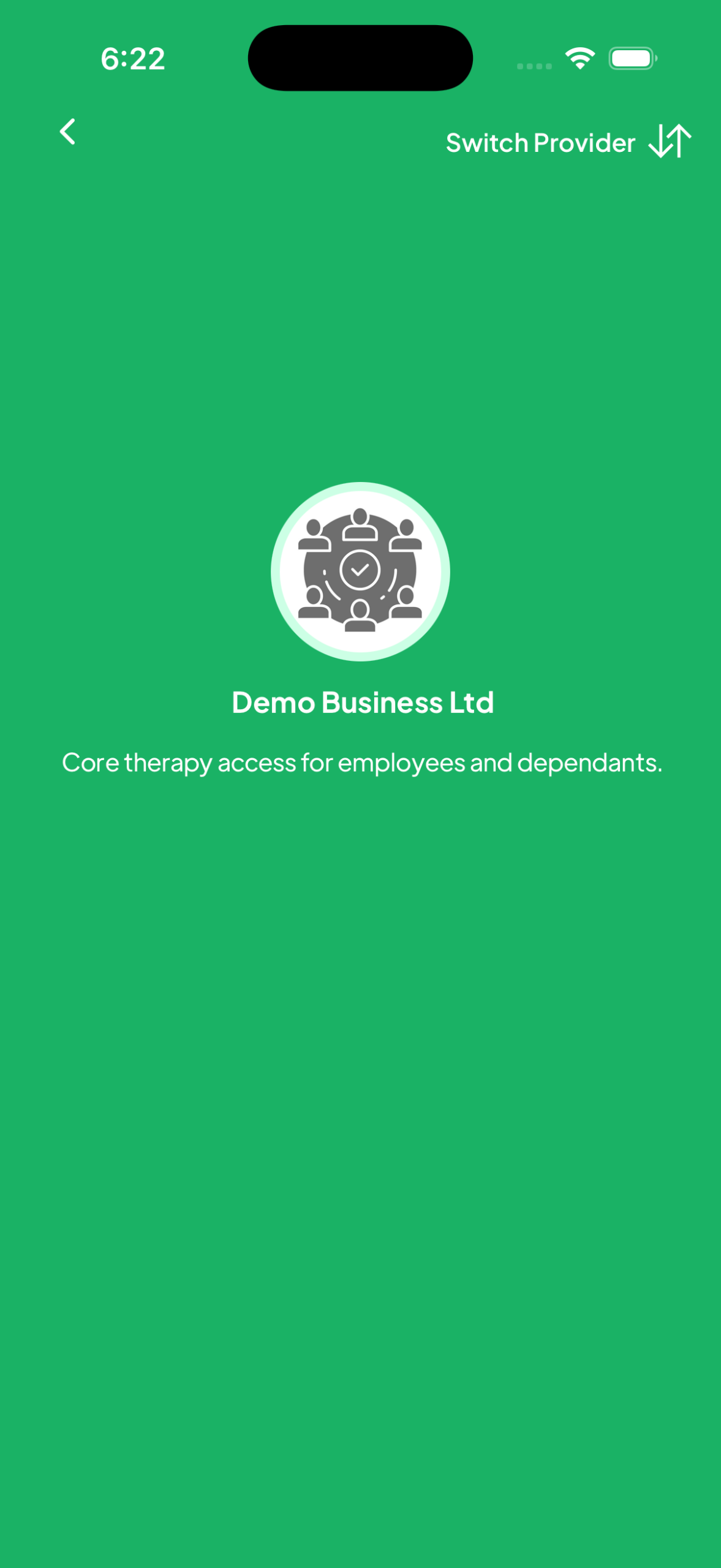
🧭 What “coverage” actually means here: the screen lists what kinds of therapy your plan supports. It does not show a running “sessions remaining” counter, so keep your own rough count (your plan’s allowance — e.g. 2/month — is set by your employer).
Step 4 — Find a therapist
From Home or the Therapy tab, tap Featured Therapists → View More to browse. The list header shows how many are available to you (e.g. “Showing 3 out of 3 available therapists”), each with their rate and rating.
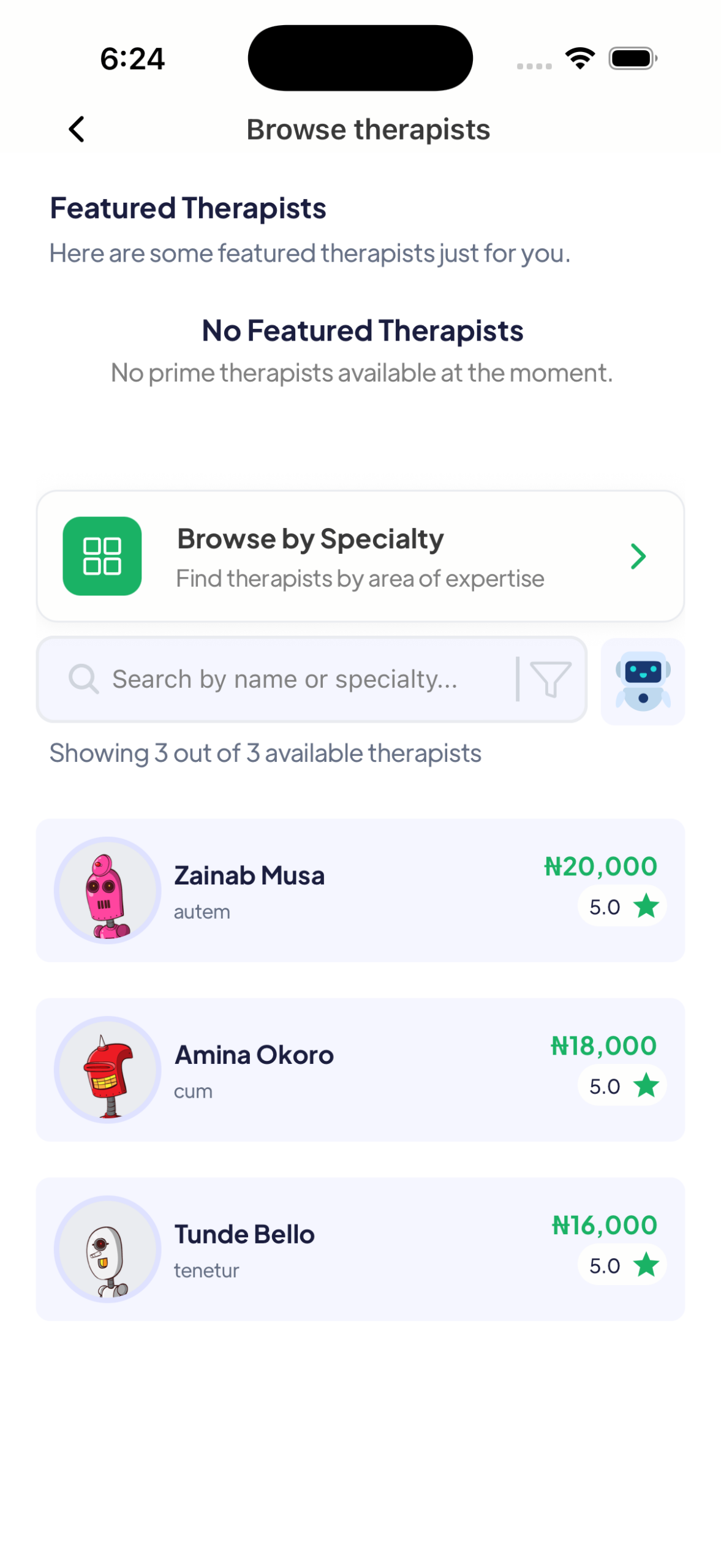
⚠️ Important quirk: when you’re an organisation beneficiary, the therapist list is filtered to the therapists your plan covers (your plan’s “tier”). That’s by design — but it also means if your plan hasn’t been linked to any therapists yet, the list can come up empty. If you see no therapists at all, that’s not your fault — it’s a configuration gap on the plan. Report it to your HR admin / our support rather than assuming no one is available.
Step 5 — Choose your session details
On the therapist’s profile, tap Book and choose:
- Session type — individual (or couples if your plan and the therapist both support it).
- Date — must be a day the therapist is available (each therapist sets their own weekly days, e.g. Thu / Fri / Sat afternoons). Days outside their schedule won’t be selectable.
- Time slot — pick from the open slots shown for that day.
📅 Heads-up: many therapists don’t accept same-day bookings, so pick a future date. The app will tell you a therapist’s available window if you choose a time outside it.
Tap through to Review, add a short reason and any note for your therapist, then continue to checkout.
Step 6 — Confirm your covered booking
When your session is covered, the Confirm booking screen makes it unmistakable:
- The payment section shows a single option: “Pay through {your organisation}” — e.g. Pay through Demo Business Ltd — with “Covered — you won’t be charged” underneath. It’s selected for you automatically.
- The footer reads “You pay today: ₦0.00” with the session’s normal price shown struck through beside it, and confirms “Covered by {your organisation}.”
- The button simply says “Confirm booking” — there’s no payment step at all.
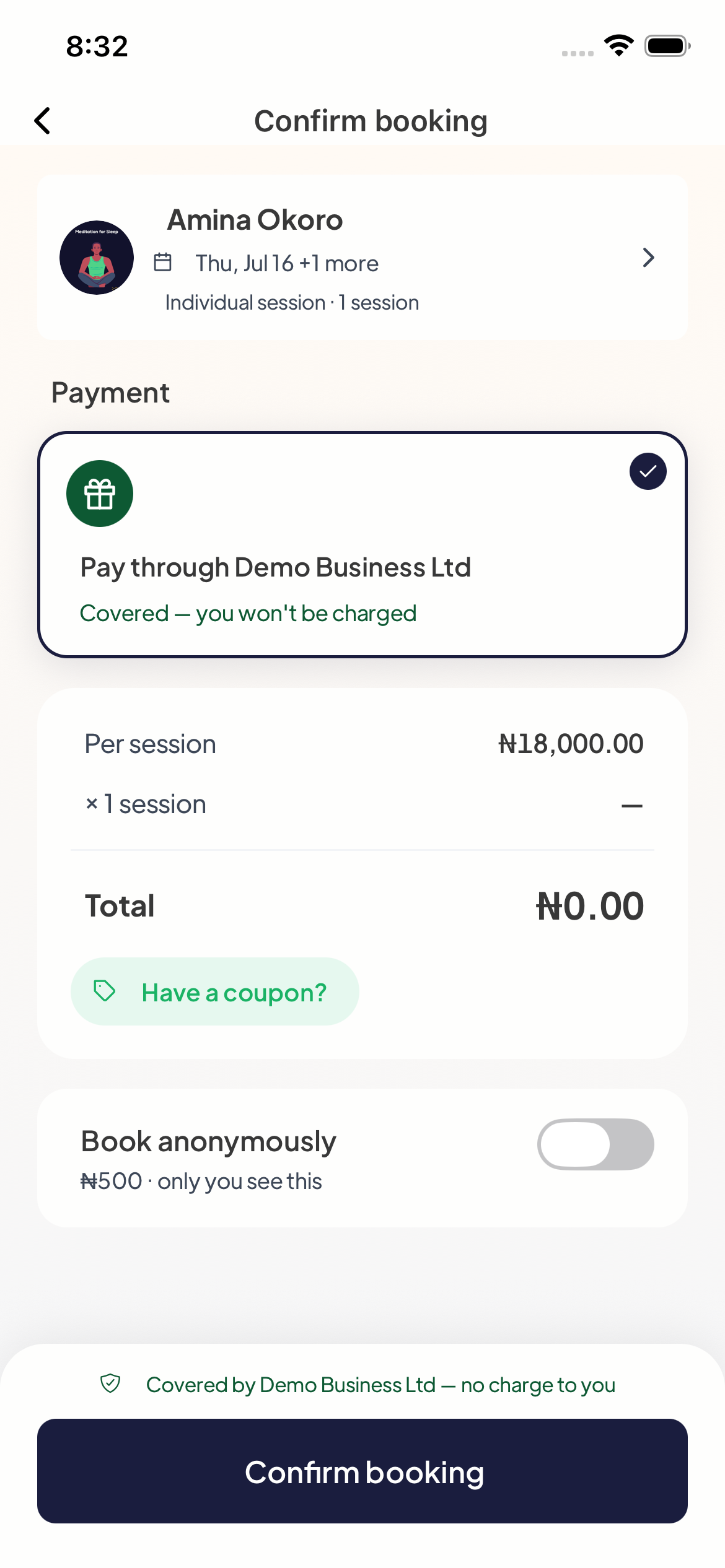
Tap Confirm booking and you’re done — the session is billed to your organisation, and your own wallet or card is never touched.
💳 If you see the regular payment list (Wallet, My HMO, cards) and a “Book session” button instead, this particular session isn’t covered by your employer — you’ve used your allowance for the cycle, the therapy type isn’t in your plan, or the therapist isn’t in-plan. You can pay out of pocket, bill your HMO if you have one (see Part B), pick an in-plan therapist, or wait for your allowance to reset. (See Troubleshooting below.)
Suggested read: How to Access Mytherapist.ng Through Your HMO
Step 7 — Confirm and attend
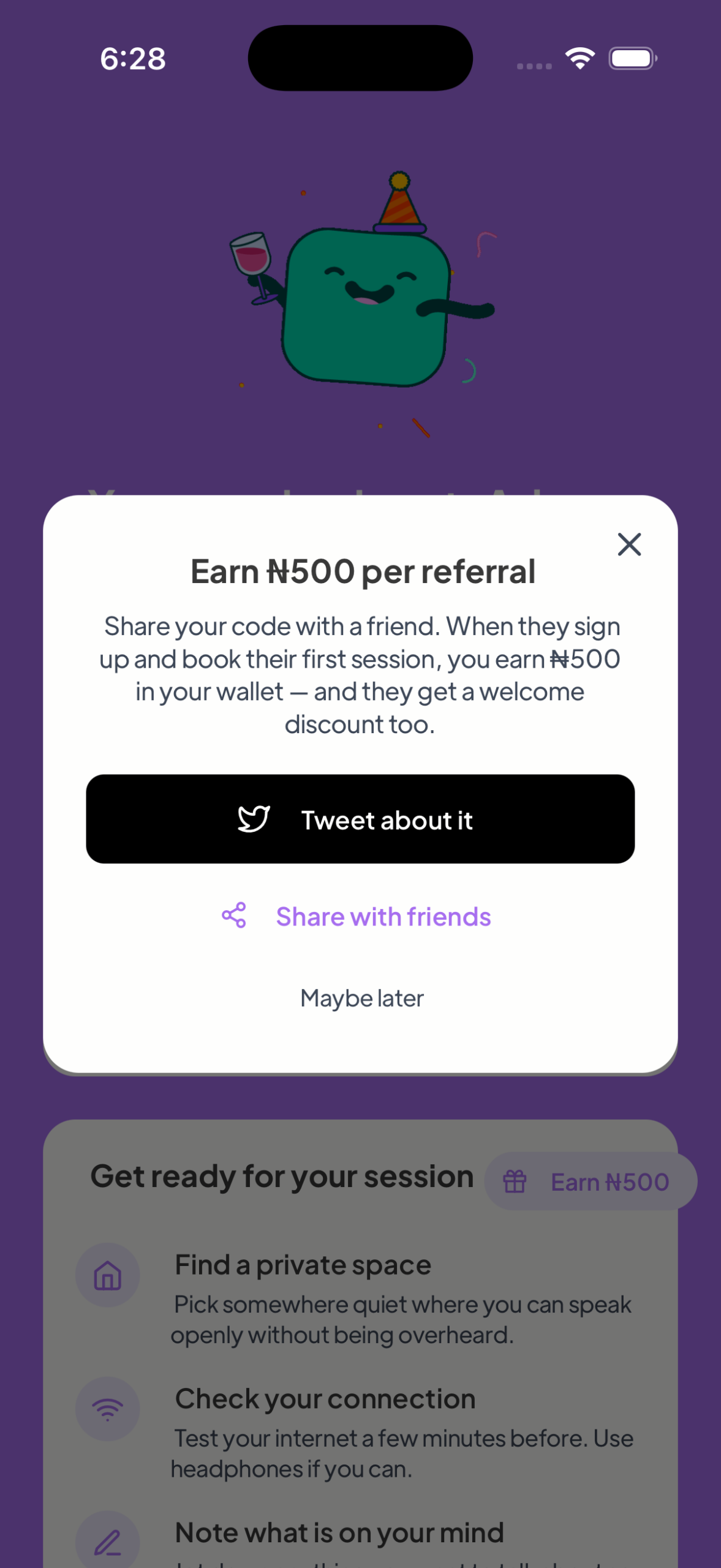
After confirming:
- Your session appears under Appointments (it starts as pending until the therapist accepts).
- You’ll get reminders, and you can add it to your calendar.
- Join the video/audio room from the appointment at the scheduled time.
Each covered booking uses one unit of your allowance (one session, or its cost against your spend cap). When the cycle resets, your allowance refills.
Part B — Book through your HMO
If you hold a health insurance plan with a supported HMO, you can bill your therapy session straight to it — ₦0 out of pocket, no wallet top-up, no card. Two things make this path different from the employer one:
- You choose it yourself at checkout. Nothing needs to be set up beforehand — no enrolment on our side, no invite. If your HMO is supported, the option is right there.
- Your session is reserved first, then confirmed. HMOs approve cover per session, so after you book, our team confirms your cover with your HMO before the session holds. You’ll usually hear back within a day.
Supported today: AllyHMO — with more schemes on the way. (Not yours yet? See “My HMO isn’t listed” below — asking for it genuinely speeds it up.)
Step 1 — Pick your therapist and time as usual
Browse and choose a therapist exactly as in Part A (Steps 4–5). One rule to know: HMO-billed sessions must start at least 24 hours from now, so there’s time to confirm your cover. Same-day slots can’t be billed to an HMO.
Step 2 — Choose “My HMO” on the Confirm booking screen
On the Confirm booking screen, the payment list shows every way to pay — Wallet, My HMO, your saved cards. Tap My HMO.
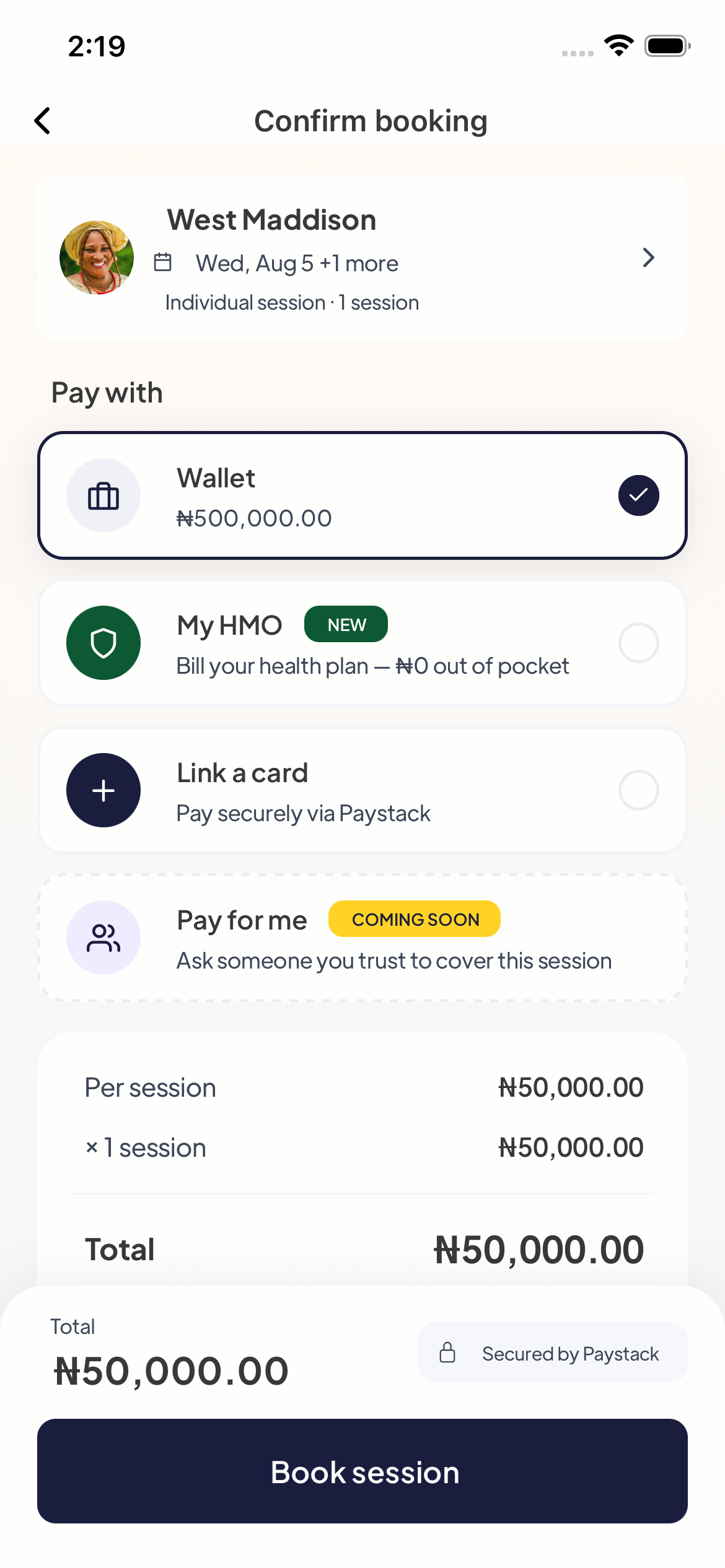
A picker opens with the supported schemes. Tap yours.
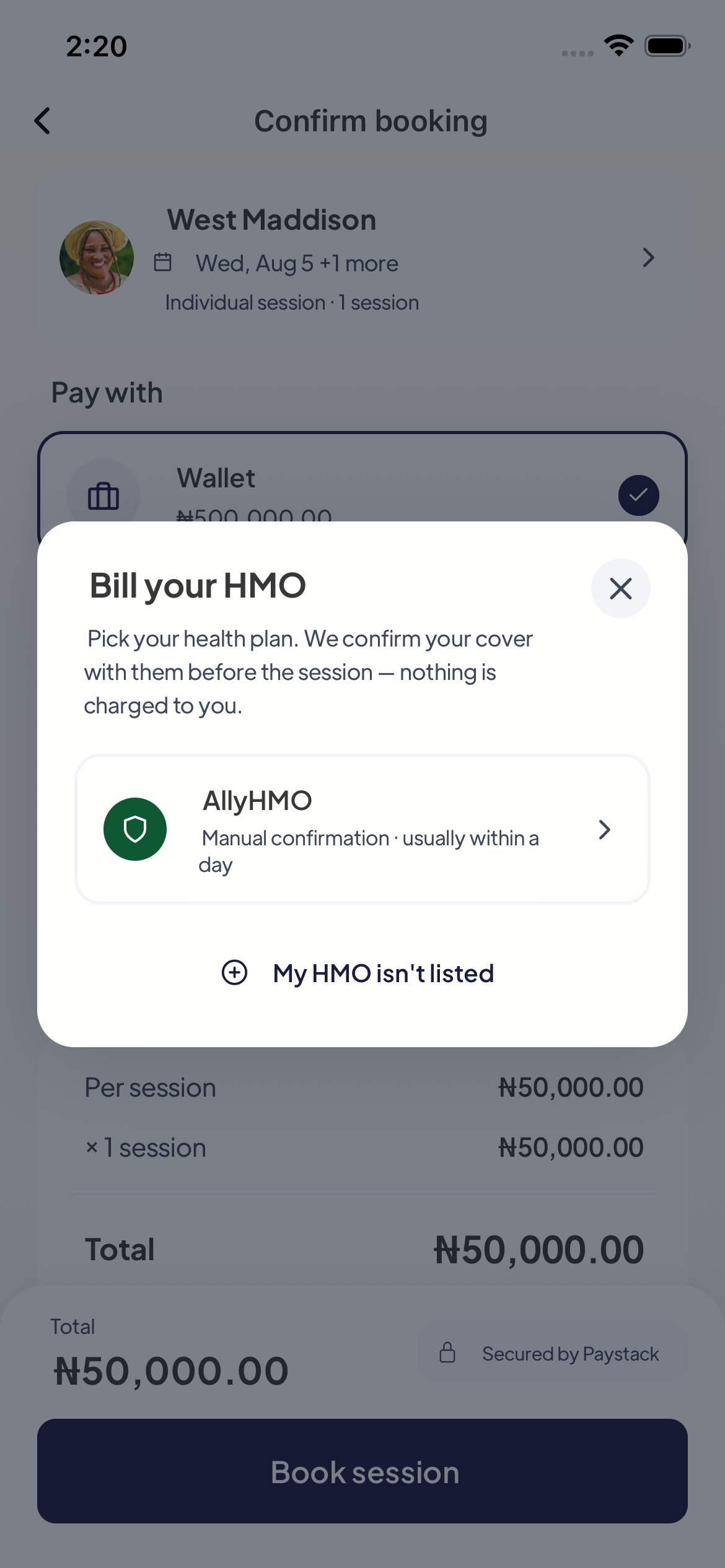
Step 3 — Enter your enrollee ID
Type the enrollee ID from your HMO card — it’s how your HMO finds your plan when we contact them. The app remembers it, so next time it’s prefilled.
Two things you’ll notice on this screen:
- The footer now reads “You pay today: ₦0.00” with the session price struck through, and “Billed to AllyHMO — cover confirmed before your session.”
- The button says “Reserve with AllyHMO” instead of a pay button — because nothing is charged to you.
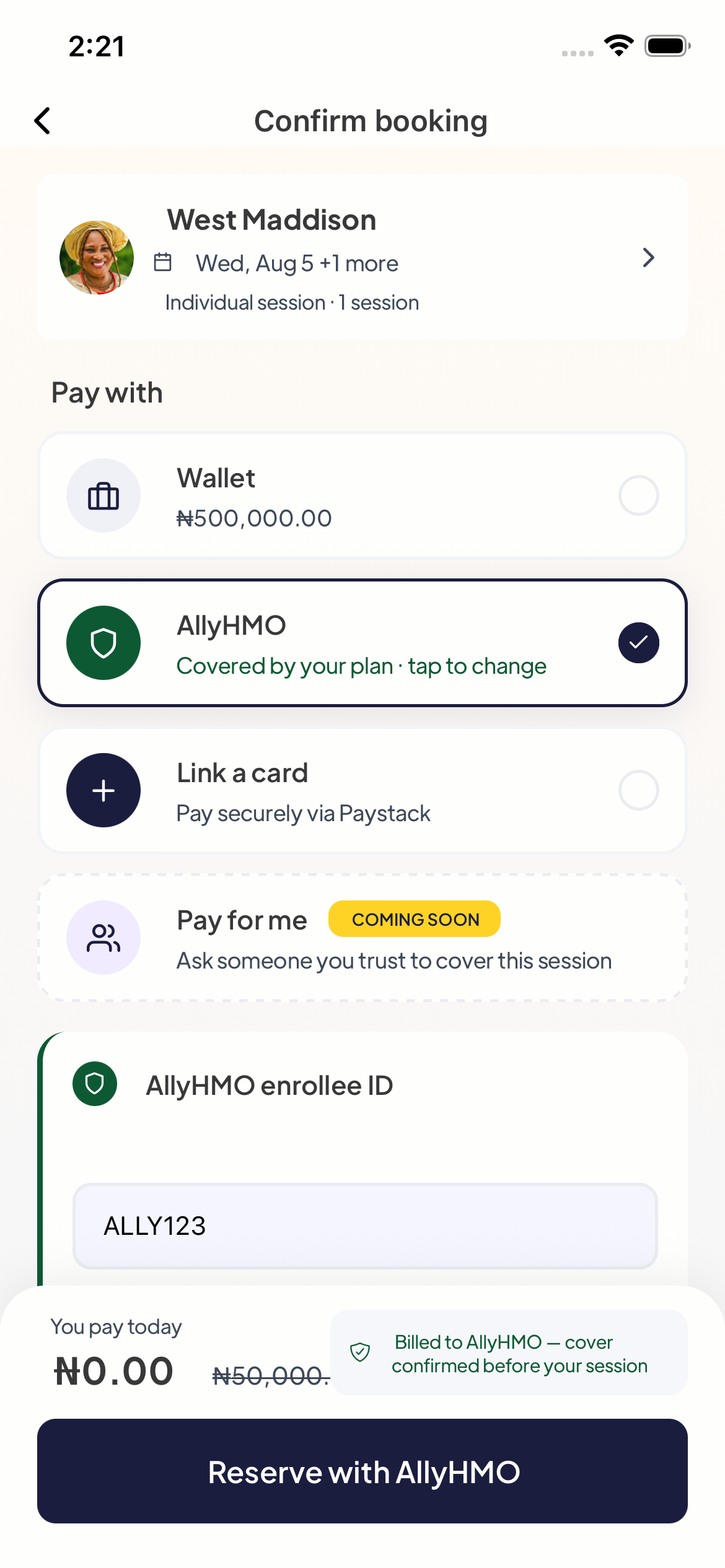
🕶️ One trade-off: anonymous booking isn’t available with HMO billing — your HMO needs your real details to confirm your plan.
Suggested read: HMO-Covered Therapy in Nigeria: How to Use Your Health Plan to Pay for Sessions
Step 4 — Reserve, then relax
Tap Reserve and your slot is held — no one else can book it.
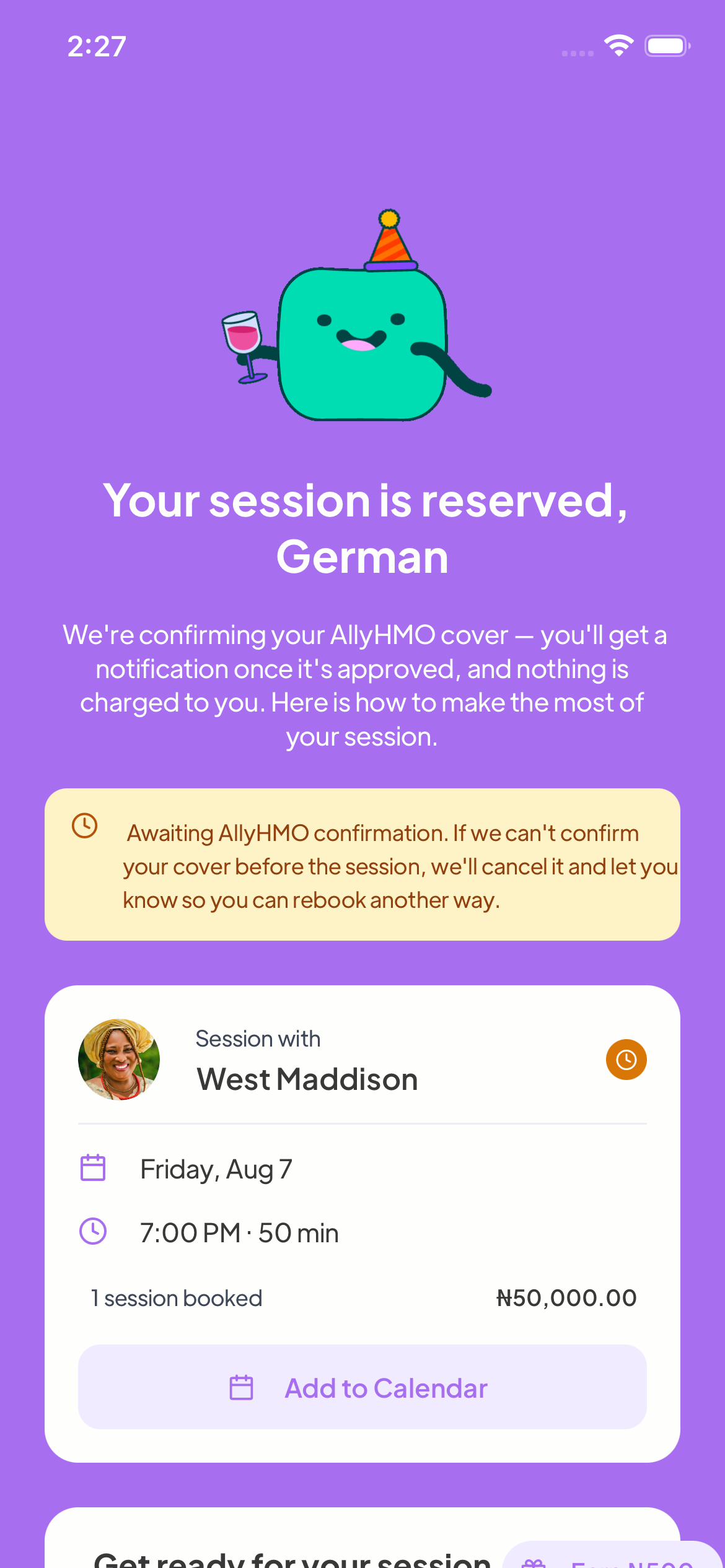
Here’s what happens next:
- We contact your HMO to confirm your cover for this session. Nothing is charged to you at any point.
- You get a notification the moment it’s approved — usually within a day. Your session then goes ahead exactly like any other.
- If your HMO can’t confirm in time, we cancel the session before it starts and tell you straight away, so you can rebook with your wallet or card — and because no money ever left your account, there’s nothing to refund.
You can watch the status on the appointment itself: an amber “Awaiting AllyHMO confirmation” banner while we confirm, turning green — “Covered by AllyHMO” — once approved.
My HMO isn’t listed — request it
If your scheme isn’t in the picker yet, tap “My HMO isn’t listed” and tell us about it: your HMO’s name, your enrollee ID, and — if you have them — your HMO’s claims email or phone (usually on the back of your card).
Then two emails go out:
- We email your HMO that one of their enrollees wants to use their plan for therapy, and invite them to set it up with us.
- We email you the next steps — including a short script for calling your HMO’s claims line yourself. HMOs listen to their members, so that call genuinely moves things faster.
The moment your HMO goes live, you’ll get an email that you can book with it — and your request helps everyone else on your plan too.
Troubleshooting — “My benefit didn’t apply”
Work through these in order:
| Symptom | Likely cause | Fix |
|---|---|---|
| Home shows no benefits card | Logged in with the wrong email / not yet enrolled / invite not accepted | Log in with your enrolled email; confirm with HR you’re active; accept any pending invite |
| No therapists appear | Your plan isn’t linked to any in-network therapists yet | Report to HR / support — it’s a plan-configuration gap, not “no availability” |
| Checkout shows Wallet / Card / Opay instead of “Pay through {your organisation}” | Allowance used up this cycle • therapy type not covered (e.g. couples on an individual-only plan) • therapist not in your plan | Try an in-plan therapist / individual session; otherwise wait for reset or pay the extra |
| You were charged but expected coverage | Coverage is decided at checkout; one of the eligibility checks above failed | Contact support with the appointment details |
| My HMO doesn’t appear in the payment list | The session starts in under 24 hours, or your org fully covers it (the sponsored option replaces the list) | Pick a slot at least a day out; if your employer covers the session you don’t need your HMO |
| HMO session was cancelled before it started | Your HMO didn’t confirm cover in time, or couldn’t verify your enrollee ID | Check the notification for the reason; sort it out with your HMO’s claims line, then rebook — or rebook now with wallet/card. Nothing was charged |
Quick FAQ
Do I enter a coupon or code? No. Eligible coverage is applied automatically at checkout. (A separate company coupon may exist for some orgs, but the standard benefit needs no code.)
How many free sessions do I get? Whatever your employer’s plan sets (e.g. 2/month, or a monthly spend cap). The app doesn’t show a live counter today — ask HR for your allowance.
Can my partner join (couples)? Only if both your plan supports couples therapy and the therapist accepts couples. Otherwise it won’t be covered.
Suggested read: How to Access Mytherapist.ng Through Your HMO
My benefit resets when? Monthly or annually, depending on the plan — at the start of the next cycle.
I belong to two organisations — which one pays? Use Switch provider on the Benefits screen to pick before you book.
Will I pay anything when I book with my HMO? No. Nothing is charged when you reserve, and nothing is charged if your HMO doesn’t confirm — money never leaves your wallet or card on an HMO booking.
How long does HMO confirmation take? Usually within a day. That’s also why HMO sessions must be booked at least 24 hours ahead.
What happens if my HMO says no? We cancel the session before it starts and notify you with the reason. You can fix things with your HMO and book again, or rebook with your wallet or card.
Which HMOs are supported? AllyHMO today, with more coming. Request yours from the payment screen — we contact the HMO directly, and you’ll be emailed the moment it’s live.
Can I book anonymously and bill my HMO? No — your HMO needs your real details to confirm your plan. Anonymous booking still works with wallet and card.
Last updated: 2026-08-05. Steps and screenshots reflect the live Mytherapist.ng app, including the HMO payment option.